Quick Tour
A 5-minute walkthrough of HotCRM — the home page, your first lead, your first deal.
Quick Tour
A guided tour through the screens you'll use every day.
1. The home dashboard
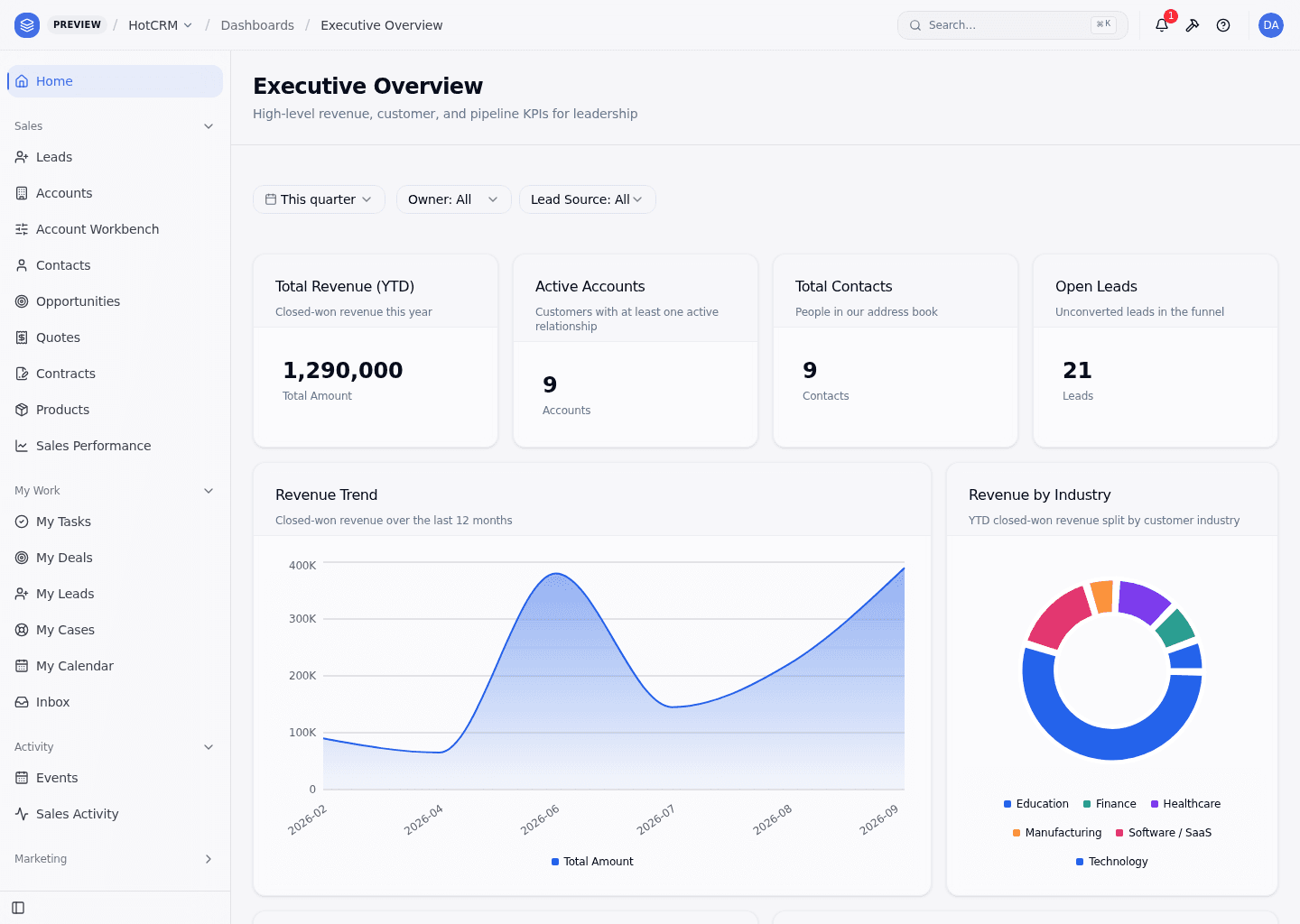
The left nav opens with one pinned entry, Home, and that is where you land. Home opens the Executive Overview dashboard — nine tiles of revenue, customer and pipeline numbers:
| Tile | What it shows |
|---|---|
| Total Revenue (YTD) | Closed-won revenue this year |
| Active Accounts | Customers with at least one active relationship |
| Total Contacts | People in the address book |
| Open Leads | Unconverted leads in the funnel |
| Revenue Trend | Closed-won revenue over the last 12 months |
| Revenue by Industry | YTD closed-won revenue split by customer industry |
| Pipeline by Stage | Open opportunity value at each sales stage, drawn as a funnel — value, not a count of deals |
| New Accounts | Account creation cadence over the last 6 months |
| Accounts by Industry | Total annual revenue and account count per industry |
Above them sit a date-range picker over the close date (this quarter by default), an Owner filter and a Lead Source filter. The four KPI tiles state their own period — YTD, "active", "unconverted" — and are not narrowed by the picker, so those counts stay whole while the revenue charts follow it.
Use it as your daily start-of-day landing page.
Four things this page used to promise are on no tile here, and one name it used belongs to a different dashboard:
- CRM Overview is a real dashboard, but it is not the one Home opens. It sits under Insights — one of the groups collapsed when the app loads — so it is two clicks away rather than the first thing you see. Active Deals (a count of open opportunities), Won Deals and Pipeline by Owner are its tiles, not this dashboard's.
- Cases awaiting your response are on neither dashboard: no tile on Executive Overview or on CRM Overview counts a case. Open Cases, Critical Cases and SLA Violations are on Service Overview, under Service — see Service.
- Top accounts by pipeline value is not a tile in this app at all. Accounts by Industry groups by industry rather than ranking customers, and the nearest ranking anywhere — Pipeline by Owner on CRM Overview — ranks sales reps rather than customers.
- Recent activity (last calls, meetings, emails) is not here either. Interactions Logged, Meetings Booked and Customer Minutes are on Sales Activity, under Activity.
- Team-level rollups for managers are not something this dashboard does. Every tile runs the same query for everyone; what differs is which records you are allowed to read, and that comes from your permission set. Positions in this app are flat — there is no reporting line for visibility to roll up — and the Sales Manager set grants
viewAllRecordsoutright, so a manager reads org-wide totals rather than a team slice.
➜ Learn more: Dashboards
2. The app launcher
Click the app launcher (top-left grid icon) to switch between apps:
- HotCRM — the main app with all CRM functionality.
- Admin — for system administrators.
Inside HotCRM, the left nav opens with one pinned item — Home, which is the Executive Overview dashboard — and everything else sits in six groups:
| Group | Contents |
|---|---|
| Sales | Leads, Accounts, Account Workbench, Contacts, Opportunities, Quotes, Contracts, Products, Sales Performance |
| My Work | My Tasks, My Deals, My Leads, My Calendar, Inbox, My Cases |
| Activity | Events, Sales Activity |
| Marketing | Campaigns |
| Service | Cases, Knowledge, Service Overview |
| Insights | CRM Overview, Forecasts, Pipeline Coverage, Lead Inflow, SLA Performance |
Marketing and Insights are collapsed when the app loads — only Sales, My Work, Activity and Service open themselves. Click a group open before deciding something isn't there.
One sidebar row per destination is deliberate. Where an object offers several ways of looking at the same records, those live as tabs across the top of that object's list page, not as extra rows in the nav — so the sidebar stays short enough to scan.
Five group names this page used to list are not in the app at all, and several item names sit somewhere other than where it put them:
- Products is not a group. The catalog is the Products item under Sales, where the revenue master data belongs — see Products.
- Approvals is no longer a group either. Its one item, Inbox, is a personal queue, so it now sits under My Work with the rest of what is waiting on you — see Approvals.
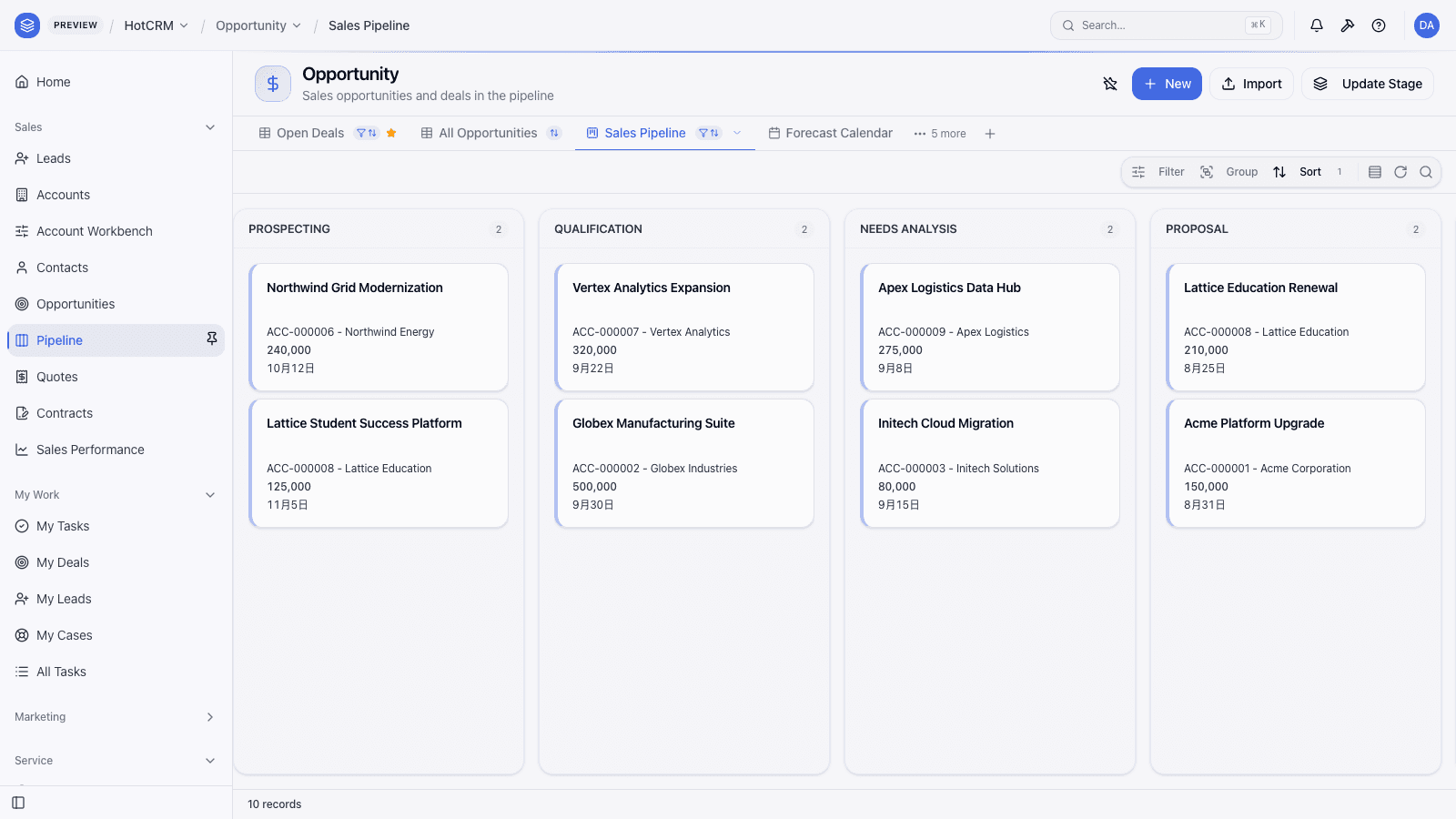
- Four item names this page used to list have left the sidebar without leaving the product — each is now a tab on the list page it belongs to. Pipeline is the Sales Pipeline tab on Opportunities; Calendar and Interaction History are the Event Calendar and ✅ Interaction History tabs on Events; All Tasks is the first tab on the page My Tasks opens.
- Activities is not a group; the real one is Activity, and tasks are not in it.
crm_taskreaches the sidebar as My Tasks, under My Work. - Analytics is not a group; the real one is Insights. Nothing in it is called Dashboards or Reports — the dashboard and the three reports it pins are listed above under their own names.
- AI is not a group, and no sidebar item is called Copilot or Knowledge Bases. The Copilot is the right-side chat panel on every page (section 6 below), and the knowledge articles are Knowledge under Service.
- Knowledge Base is not a label this app carries. The Service entry is Knowledge, and the service dashboard beside it is Service Overview — see Service.
- Campaign Members is not a sidebar item. Campaign membership is reached from the campaign detail page or from global search — see Campaign Members.
- Approval Requests and Action History are not items either: Inbox is the only approvals entry the app carries. The approval audit trail is real data — the approvals plugin stores it as
sys_approval_action— but no navigation entry in this app opens it.
3. Your first lead
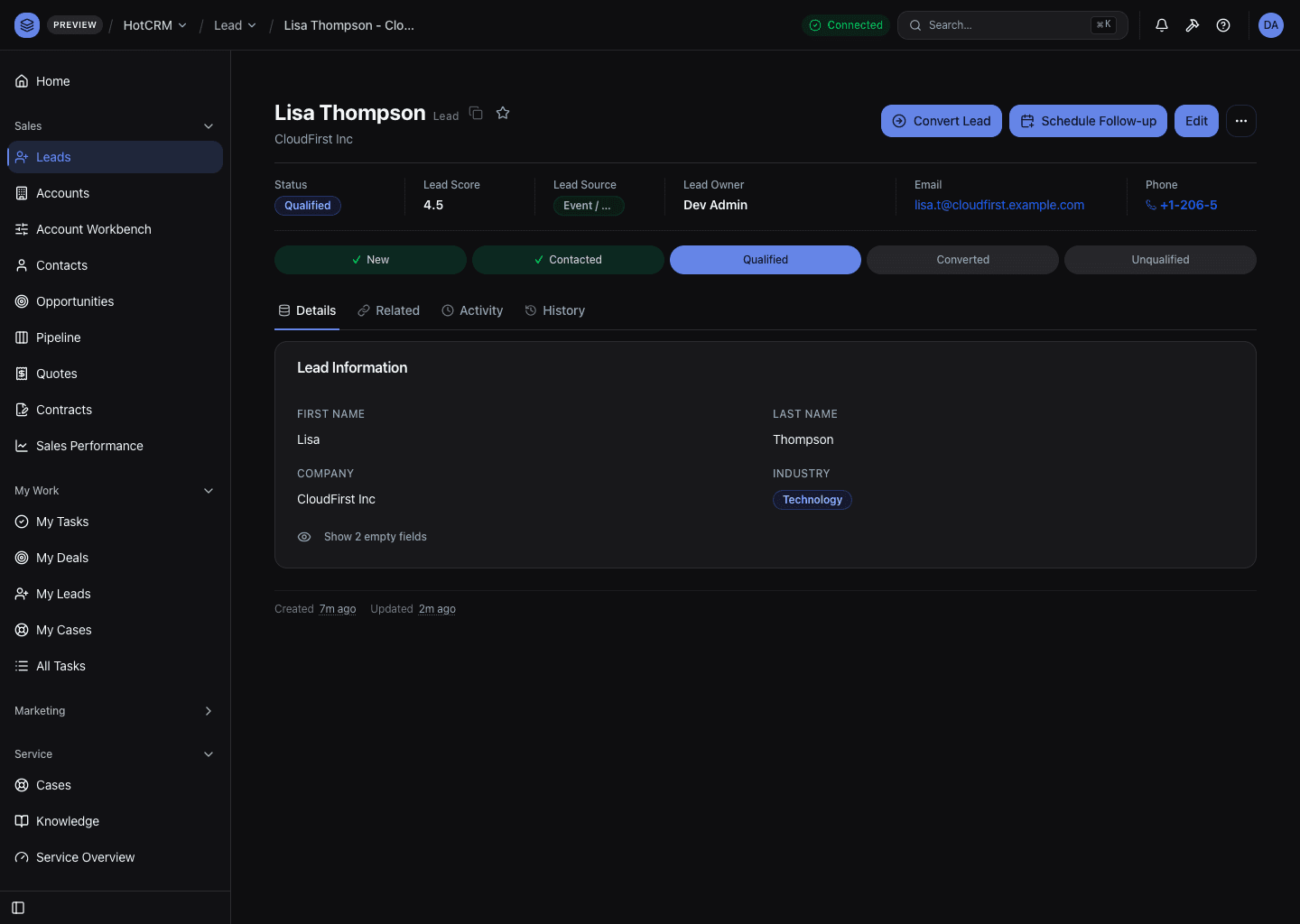
A lead is someone who's expressed interest but hasn't been qualified yet.
- Click Sales → Leads → New.
- Fill in Name, Company, Email.
- Save. The lead is automatically assigned to you.
- Ask the assistant to "qualify this lead" on the lead detail page — the Lead Qualification skill scores them 0–100 on BANT and suggests the next action.
- When ready, click Convert to turn the lead into an Account + Contact + Opportunity in one step.
➜ Learn more: Leads
4. Your first opportunity
An opportunity is a real deal you're working.
- Created automatically from lead conversion, or Sales → Opportunities → New.
- Set Account, Amount, Close Date, Stage.
- As the deal progresses, move it through stages: Prospecting → Qualification → Proposal → Negotiation → Closed Won.
- The system enforces the state machine — you can't skip stages randomly.
- Click ✍️ Draft Email to have the AI Copilot draft a contextual follow-up.
- Win it by setting stage to Closed Won — the system auto-creates a contract and notifies the team.
➜ Learn more: Opportunities
5. A service case
A case is a customer issue.
- Cases arrive via email, web form, phone, chat, or portal.
- New cases land in a queue — agents pick them up.
- Ask the assistant to "triage this case" on a new case — the Case Triage skill suggests priority, category, and matching knowledge-base articles.
- The SLA clock starts — see the time-to-respond / time-to-resolve countdown on the case page.
- Reply to the customer; close the case when resolved.
➜ Learn more: Cases
6. The AI Copilot
The Copilot lives in the right-side chat panel on every page. Ask it:
- "What's at risk in my pipeline this week?"
- "Give me Customer 360 on [account name]."
- "Draft a discovery follow-up for this lead."
- "What's my forecast for this quarter?"
It reads from your CRM data and respects your sharing — you can't ask it to leak records you can't already see.
➜ Learn more: AI Copilot
7. Where to next?
Pick the role that matches you:
| You are a... | Start here |
|---|---|
| Sales rep | Sales |
| Service agent | Service |
| Marketer | Marketing |
| Sales manager | Analytics → Dashboards |
| CRM administrator | Administration → Setup Checklist |
| Developer | For Developers |
Happy selling 🚀